Terms
When Bluesky Feed Creator puts a post into a feed, it’s referred to as “capturing”. As the feed owner, you set the parameters for how capturing happens by using excluded terms and included terms.
The service works like this:
- Exclusions - if a post includes one of your excluded terms, it cannot appear in your feed, even if it includes an included term.
- Inclusions - if a post has not been excluded and it includes one of your included terms, it appears in your feed.
Unless you use wildcards or emojis, included and excluded terms are always whole words with either spaces or punctuation on either side of them.
If you want to search for a specific hash tag, make sure you include the hash (#) symbol with it in your search term otherwise it won’t match.
When using emojis or emoji sequences as a term for including or excluding, posts will be excluded or included if they have emojis or emoji sequences matching the term - regardless of whether they have spaces, other characters or punctuation on either side of them.
There is no option to use regex (regular expressions).
Both the post text and any alt-text on images or GIFs are considered when searching for inclusions or exclusions. Text inside a quoted post is not considered.
Adding terms
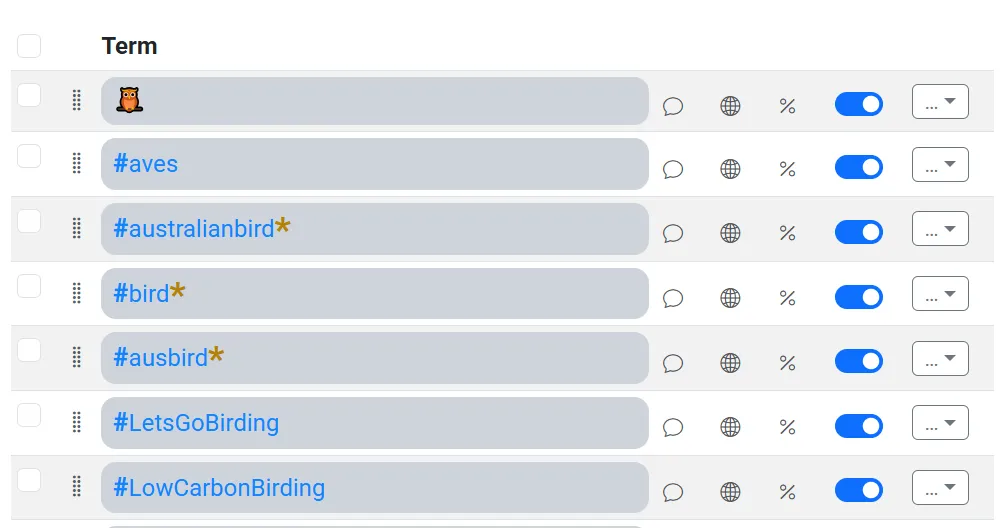
Section titled “Adding terms”Terms are a table with one term on each row. The tabs are Inclusion, Manual approval, Exclusion, Manual exclusion, and Automatic approval. Type a term in the add box and it is added to the tab you are on. You can paste several lines at once. A line that starts with -- becomes a header, not a search term.
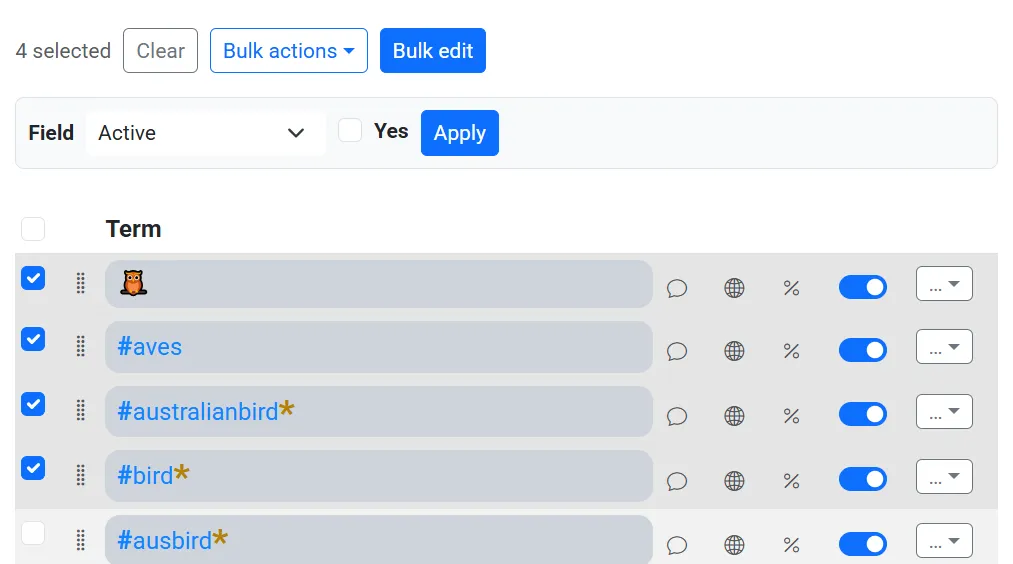
Each row has a comment, optional languages, a capture rate, and an active switch. Drag a row to change its order. Bulk edit can set the comment, languages, capture rate, or Active flag for the checked rows, or for every row in the current tab and search when none are checked.
Tooltips
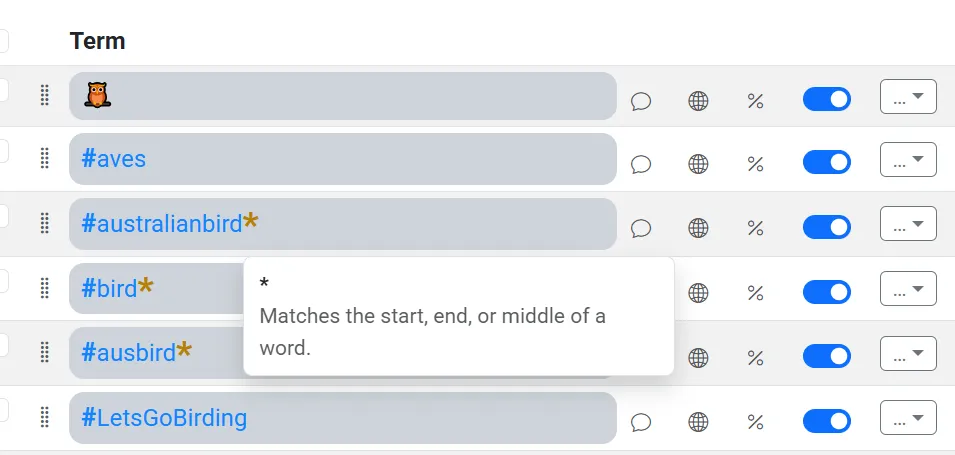
Section titled “Tooltips”You can hover over any part of a term in the feed dashboard to show an explanation of what that part is doing. When you hover over a username that is part of a term, you can quickly view their Bluesky profile information.
On mobile devices, you can access the tooltips by long pressing on the term.
Headers
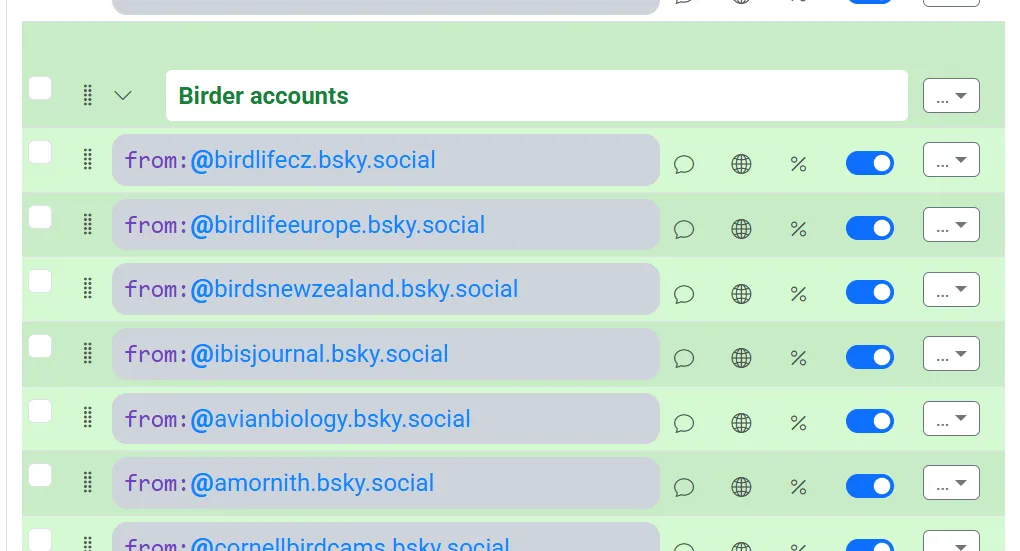
Section titled “Headers”A header groups the terms under it until the next header. The arrow collapses or expands that group. The header’s action menu sets a background colour for the header and the terms under it. The colour and whether the group is collapsed are saved on the header.
Comments
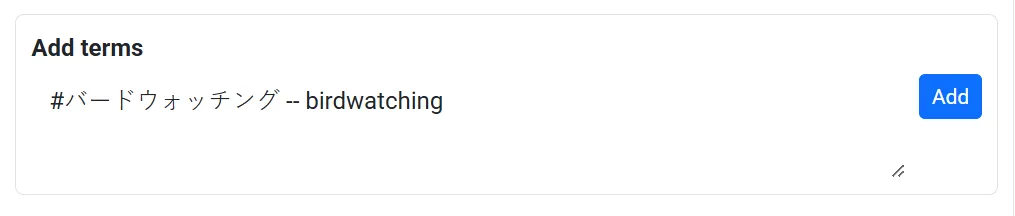
Section titled “Comments”Each term can have it’s own comment, which can help you remember why you added the term. For example if you have terms in foreign languages you might want to put the translation in the comment to remind yourself what it is.

Comments can be added to terms before you add them to the table. Use the -- syntax when writing your term:
Language and capture rate
Section titled “Language and capture rate”Each term can be limited to languages, such as EN, JA. Leave languages blank to match every language. A post tagged en-NZ still matches an en term.
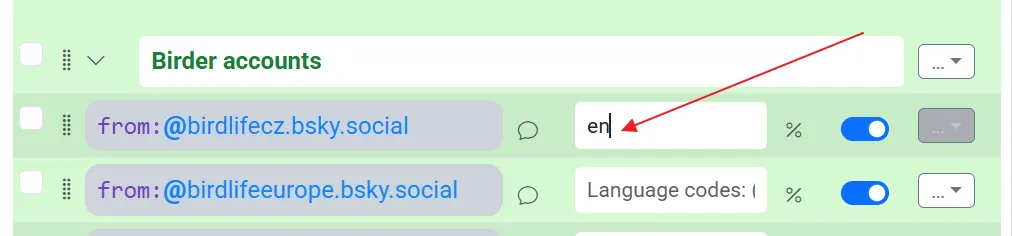
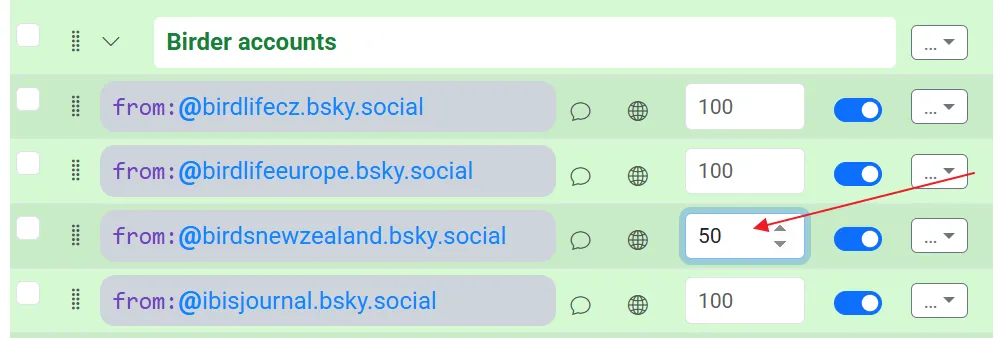
The percent control sets how often a matching term fires. 10 captures about 10% of posts that match that term, and 100 or a blank value captures all of them. Other terms on the same post are judged on their own. An exclusion only removes the post when that exclusion’s language and rate both allow it to fire.
Editing terms in bulk
Section titled “Editing terms in bulk”The Bulk actions menu can delete selected terms, or move them to another tab. With nothing checked, those actions do nothing.
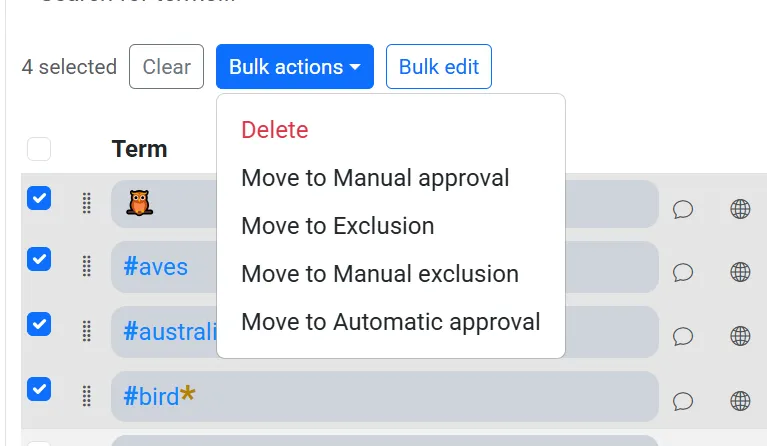
The Bulk edit option allows you to select terms and update them in bulk. For example you might want to disable a bunch of selected terms at once: